Failed to install from USB using flasher-tool or IncusOS image downloader

Hello all,

I just discovered IncusOS, and I am very excited about it!

I tried to install it on a Dell OptiPlex 7050 Micro. After fixing RAID, Secure Boot keys and TPM, I was able to boot the system from a USB pendrive.

Hardware:

  • Intel Core i5-7500
  • 16GB of memory
  • SATA-0 500GB TOSHIBA
  • SSD M.2 1000GB

I tried to create the USB pendrive using:

  1. IncusOS image downloader => Failed to choose between nvme and scsi disk
  2. flasher-tool with custom seed => Failed trying to install on USB pendrive

My flasher-tool steps are:

1/ Create seed.tar

cp /dev/null seed/install.yaml
cat >seed/incus.yaml <<EOD
version: "1"
apply_defaults: true
preseed:
  certificates:
    - name: homelab
      type: client
      certificate: |
EOD
cat incus.cert | sed 's/^/        /' >>seed/incus.yaml
tar -C seed -cf seed.tar .

2/ Flash USB

./flasher-tool --image IncusOS_202605121702.img --format img --seed ./seed.tar
sudo dd if=IncusOS_202605121702.img of=/dev/sdb bs=4M iflag=fullblock oflag=direct
sync

When I try to boot from the USB pendrive, I get the following error:

Source device '/dev/disk/by-id/usb-SanDisk_Ultra_4CXXXXXXX-0:0' is too small ...

Something notable too, at the bottom of the screen, the Install application(s) and Network configuration are empty.

What am I doing wrong?

It looks like you’re probably missing an install.yaml file in your local setup. The presence of that file, even if empty, is what triggers the install process. So before creating your seed.tar you’ll want to touch seed/install.yaml. That will likely get you to the same result as you saw when using the online image customizer.

(Without that install.yaml, IncusOS is trying to run in “live” mode from the install media, which must be at least 50GiB in size; if not, you’ll get the error you report.)

Because there’s more than one possible drive present that you could install IncusOS to, you’ll need to provide a target as part of the install seed. You likely want the nvme one, which you can easily select by providing the following install.yaml in your seed archive:

target:
  bus: nvme

Full details about the various parameters that can be used to specify the install target are available at incus-os/incus-osd/api/seed/install.go at main ¡ lxc/incus-os ¡ GitHub

Hi Mathias,

Thank you so much for your quick answer. But I have an install.yaml in my seed:

Before posting, I also tried this install.yaml files:

target:
  bus: scsi

this one:

target:
  min_size: 256GiB
  sort_order: smallest

And many other variations, without success.

I should have missed something, but I cannot find out what without any debug info.

Thanks in advance for any hints…

Hey

I run into the same issue. Archiving the files with the -C option, didn’t work for me. It might be tar version specific, since I did not have this problem on a previous install run, but I didn’t really check.

You have to archive them like this:

cd seed/
tar seed.tar *

Check that there is no root directory in the archive

tar --list -f seed.tar

# output
applications.yaml
incus.yaml
install.yaml
network.yaml

If you do it with the -C option the archive looks like this:

tar --list -f seed.tar

# output
./
./applications.yaml
./incus.yaml
./install.yaml
./network.yaml

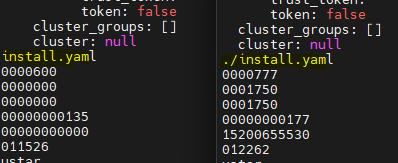
I found this out by checking the SEED_DATA partitions of an .img with strings. I downloaded an .img directly from the web customizer and an injected .img using the flasher-tool and the ‘wrong’ archiving method.

# strings on the second partition of the .img
strings /dev/sdb2

LEFT: .img from web customizer. RIGHT: Image injected with the ‘wrong’ archiving method:

Apparently the installer won’t find the install.yaml archiving them with -C option or maybe the injector in the flasher-tool thinks “./” is part of the file name.

@gibmat Is this something maybe that should be handled by the installer or the flasher-tool?

1 Like

Thanks @be3p9, you saved me days of works.

As it is a side project, I was waiting for the next week-end to explore the differences between my image and the one created by the web customizer.

I had the plan, you gave me the confirmation.

Thank you again.
Ludovic

1 Like

That should be easy enough to fix in the installer logic; at the moment we’re looking at the tar archive’s list of files and attempting an exact match on install.yaml (or whatever seed file we’re interested in). Stripping the leading ./ if present won’t be hard to do.
1 Like