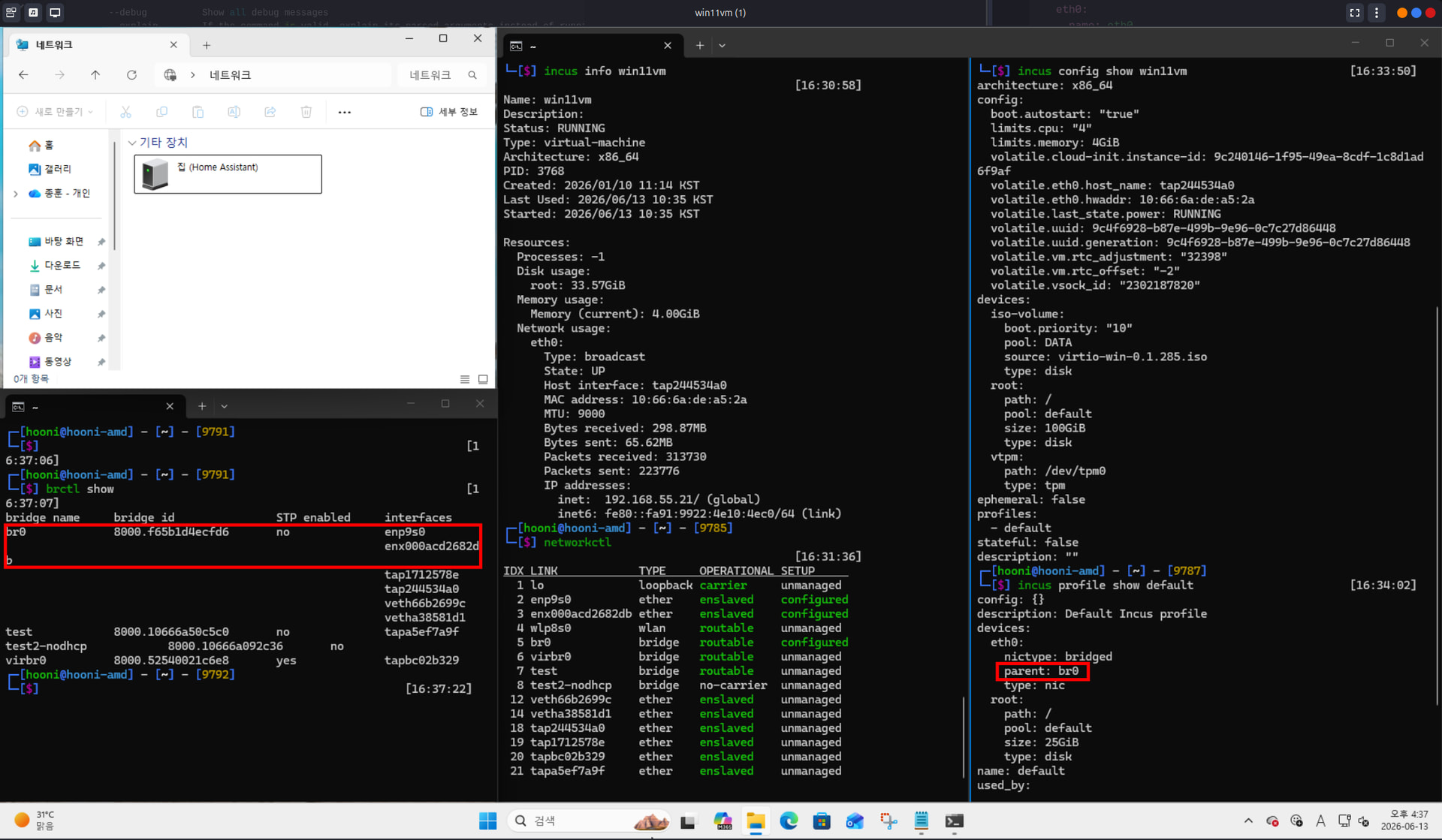
With MQTT etc. it can have quite a lot of ports to expose, which is cumbersome if you reach it under the same IP as the Incus host.
Problem
The default network (in IncusOS) is a NAT bridge apparently. However, for this VM, IMHO, a different networking would be great, but I was unable to configure it.
Also the doc seems to describe Macvlan as exactly what I want.
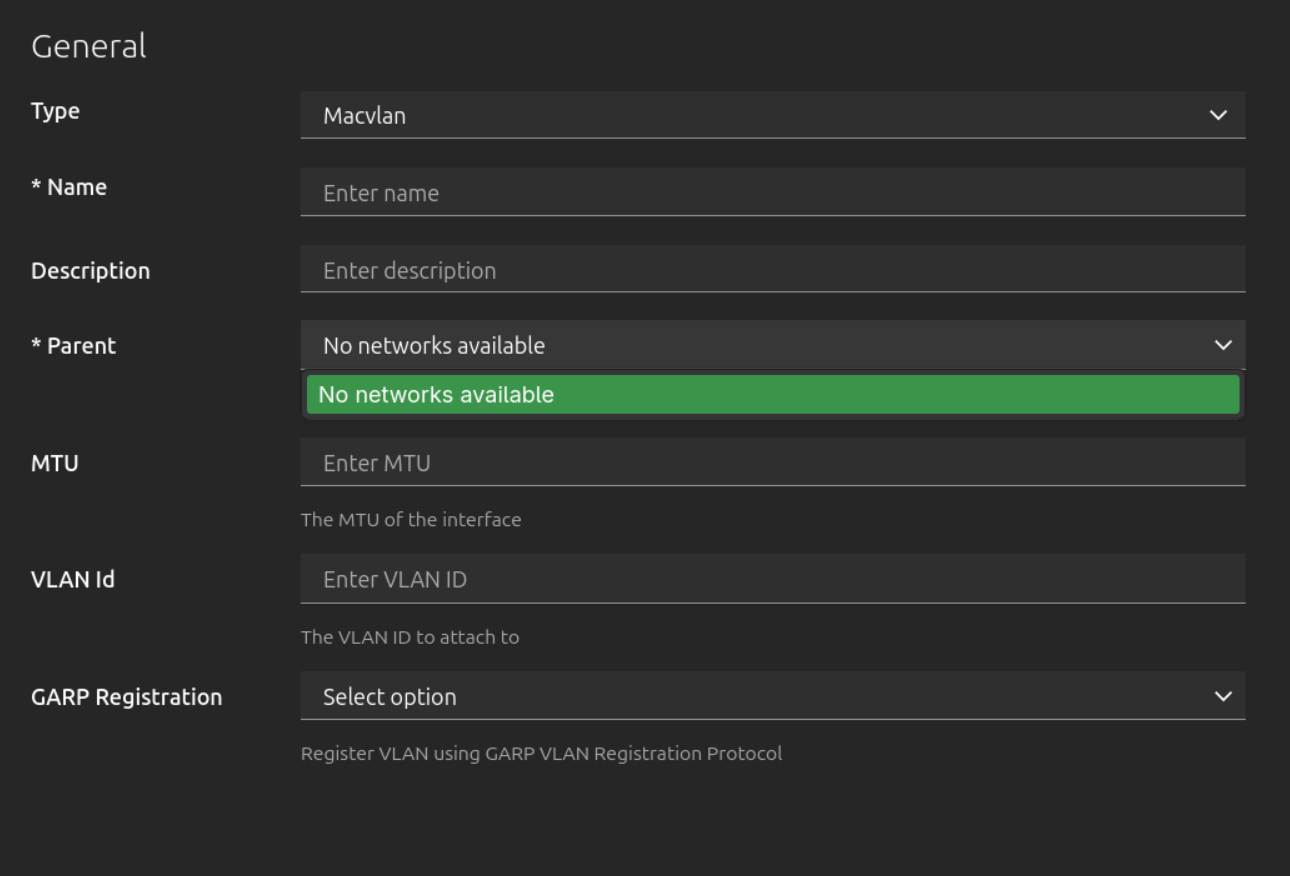
However, in the Incus-UI aka the GUI, I need to provide one required parameter named parent.
The problem is: what parent network(?) should I add here? If I could, I would add my ethernet interface, but the second problem is: In the UI the dropdown is empty – I literally cannot create and configure a macvlan network:
Initially when I read I could just disable nat in the bridge options, I thought this setting could help achieve my goal. Problem is: It does not, I guess it just routes/“bridges” nothing from the “outside LAN” then.
I however also found this article, but it looks really like a vibdecoded/LLMed website and I do not really think all makes sense there. Aka there is a YAML config in the (low resolution) screenshot (that is to be added in the GUI) that is totally different from what is shown before.
Questions
So what is the suggested approach here? What may I be doing wrong?
macvlan interacts differently with each NIC vendor driver making its behavior rather inconsistent. Since IncusOS does quite a bunch of weird stuff with networking, […], we really can’t predict how that will conflict with various NIC drivers.
So you can go through Incus […], but it’s perfectly possible that the next version of IncusOS will change [… something…,] which could lead to your system completely failing to come online.
(Highlighting by myself)
Actually, all it takes for the use case to solve, is already documented in the IncusOS documentation:
Understand these YAML configurations first. You can edit them via CLI or in the UI (OS → network).
Especially, as for assigning the roles, please note to not edit the shown state: part in the YAML, but the config: part! If you use the wrong one, you will not see an error, but just no reaction. state: can be ignored, it’s just reflecting… well… the current state.
Thus you can do everything in the GUI (which is great!), you just need to know how and enabling/adding the instances role for your network interface is the key here! You can then just select that as a “parent” in the UI.
Personally, I also would not name each interface with the same name as the docs say, to not get lost in what is what.
Edit: This thread shows exactly the same solution: