simos
May 1, 2025, 11:20pm
1
This is a tutorial for end-users on running the desktop Incus images.
In a nutshell, you run them as follows. That is, you add --console=vga to get the Remote Viewer running. Also, you need to increase a bit the VM memory from the default 1GB. The Ubuntu image requires 1.2GB RAM
incus launch --vm images:ubuntu/plucky/desktop mydesktop -c limits.memory=3GiB --console=vga
I could not get the ArchLinux VM image to boot. It gets stuck.
There are also container images with desktop in their name. How are these supposed to run?
1 Like
stgraber
May 2, 2025, 12:26am
2
That was a bug in the Jenkins configuration. I’ve fixed it now so those images will disappear over the next 10 days.
theoludwig
February 5, 2026, 9:14pm
3
I could not get the ArchLinux VM image to boot. It gets stuck.
Yes, seems like it’s still the case. Somehow using a Debian 13 ISO work, but using Arch Linux ISO, it doesn’t.
Any idea, to why and how to solve the issue?
The commands to run to reproduce (on IncusOS):
incus init vm-archlinux-pc-playground --empty --vm -c limits.cpu=2 -c limits.memory=4GiB -d root,size=50GiBincus storage volume import local ./archlinux-x86_64.iso iso-archlinux --type=isoincus config device add vm-archlinux-pc-playground iso-volume disk pool=local source=iso-archlinux boot.priority=10incus console vm-archlinux-pc-playground --type=vga
ISO downloaded from Arch Linux - Downloads
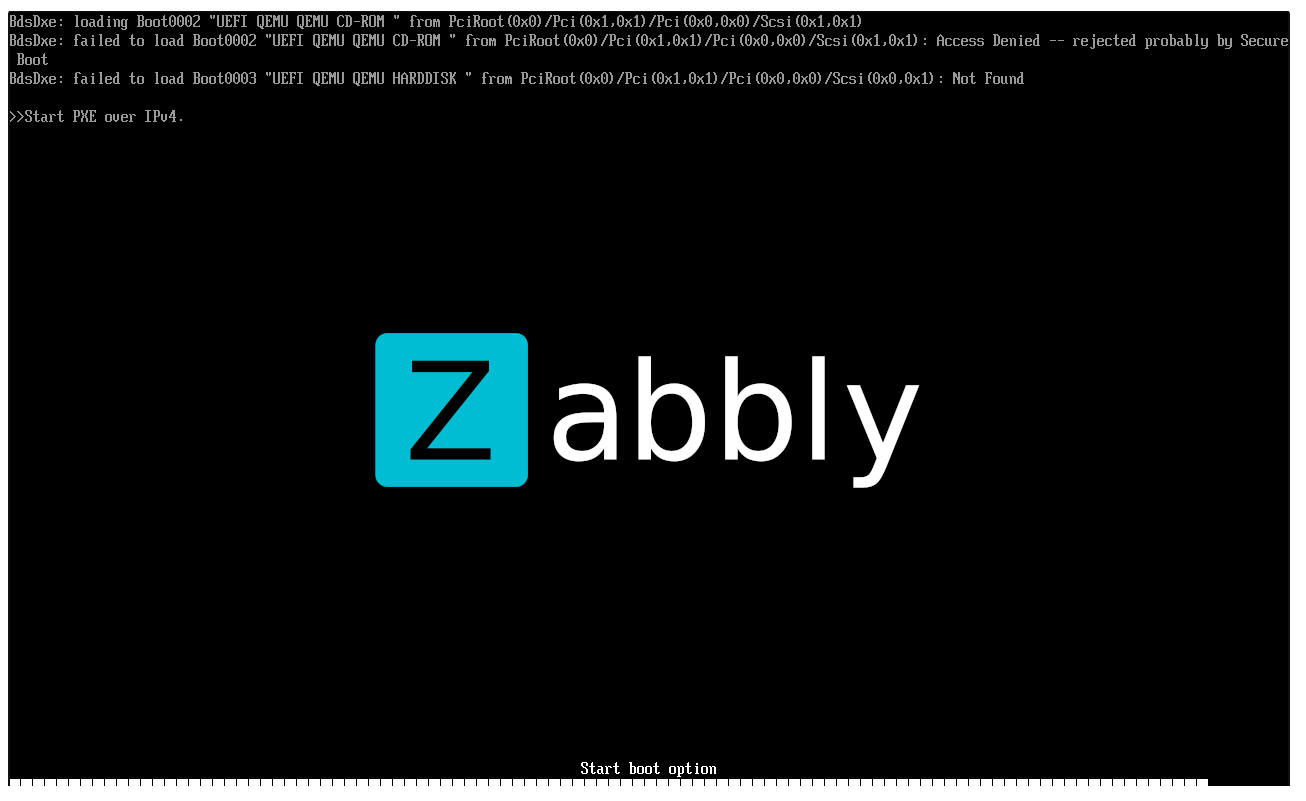
In the Console, it’s like this:
stgraber
February 5, 2026, 11:29pm
4
Access Denied means that you’re trying to boot an image that’s not valid according to your secureboot policy.
In the case of Arch Linux, that’s because it’s not signed for boot on SecureBoot systems, so you’ll need to turn it off with security.secureboot=false
1 Like
theoludwig
February 6, 2026, 7:17am
5
Thank you very much, it works now!incus config set vm-archlinux-pc-playground security.secureboot=false