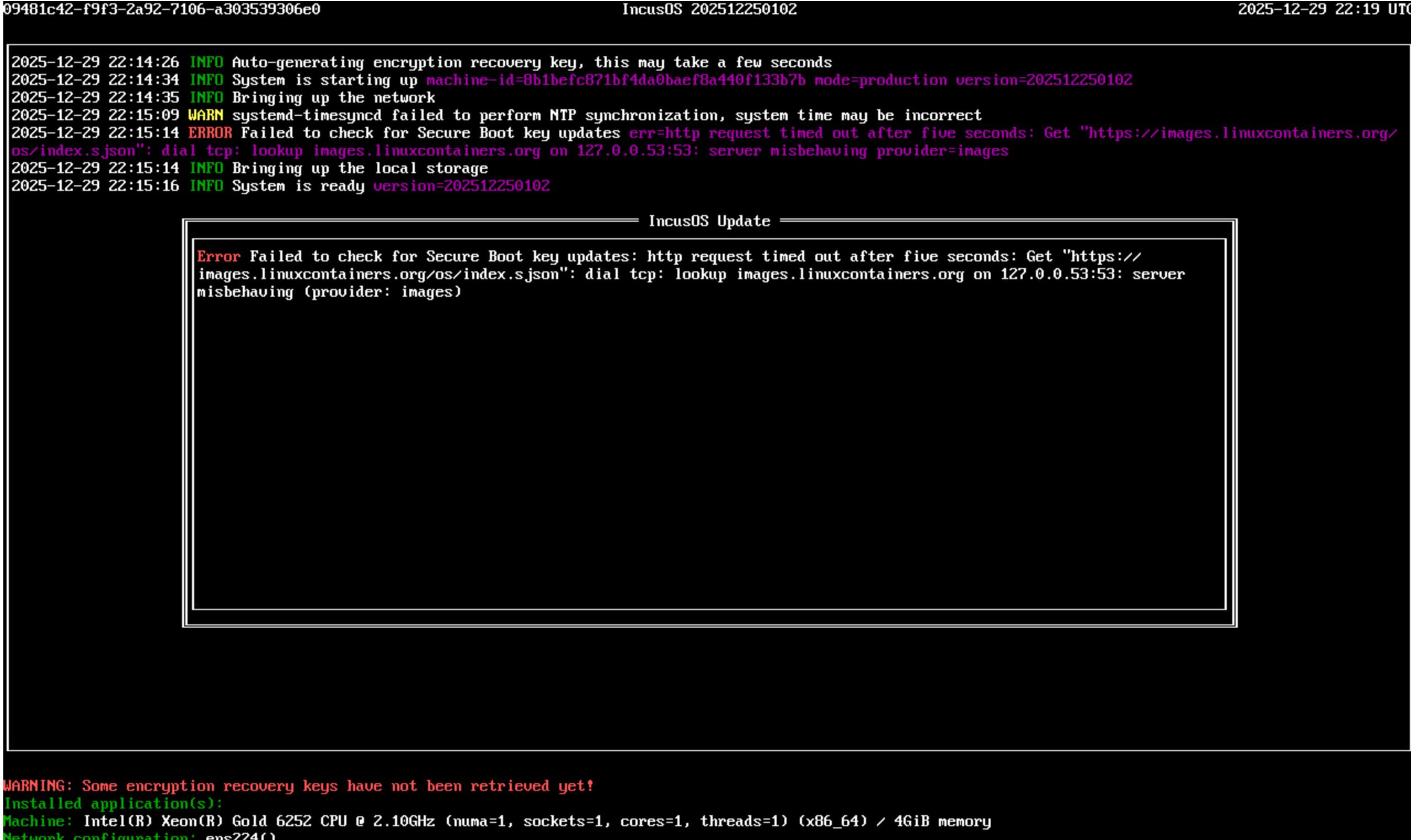
I am able to install Incus OS, but it does not get an IP address. I first downloaded the default ISO image and installed it (e.g., DHCP). Upon reboot, Incus OS loaded, but it did not get an IP address from DHCP.
I still did not get an IP address (pretty much the exact same IncusOS screen loaded).
I have reinstalled nearly a dozen times with different permutations of NICs and static/dhcp settings to see if I can get either DHCP or Static IP to work and am failing. I put in a Debain 13 live CD and it immediately gets an IP via DHCP, so I know that the interface is at least function and can get DHCP.
Not sure what kind of information/logs would be useful for troubleshooting.
set "strict_hwaddr": true, in your network config under the "hwaddr" line.
That should help run in VMware environments which are overly protective and shut down all networking if they see any unexpected ethernet frames.
Thanks, Stéphane. I tried that and it is not working, so I am thinking that there’s an issue on the network security side of vCloud Director. I am checking with our datacenter support team to see if there’s a way to “relax” the VMware network security in our environment (as indicated in the instructions). That wasn’t an option for me when I set up the server, so I’ll have to see if they can/will do it on the administrative side for my tenant.
Just leaving this as a follow up for others: It appears that they can’t enable promiscuous mode in my tenant (shared resource environment), so I am assuming that means this won’t work.
The reason we introduced the strict_hwaddr: true option in the network interface config is specifically so that IncusOS can run in a VMware environment with all port security options enabled.
There is a slight difference between the data you use with incus admin os system network edit and the data you pass in as the seed as the network edit shows you both config and state and therefore expects the config to be under a config key when sent over, whereas for the seed, only the content of config is expected.
We do have a valid example shown in the OS customizer but it’s pretty easy to miss
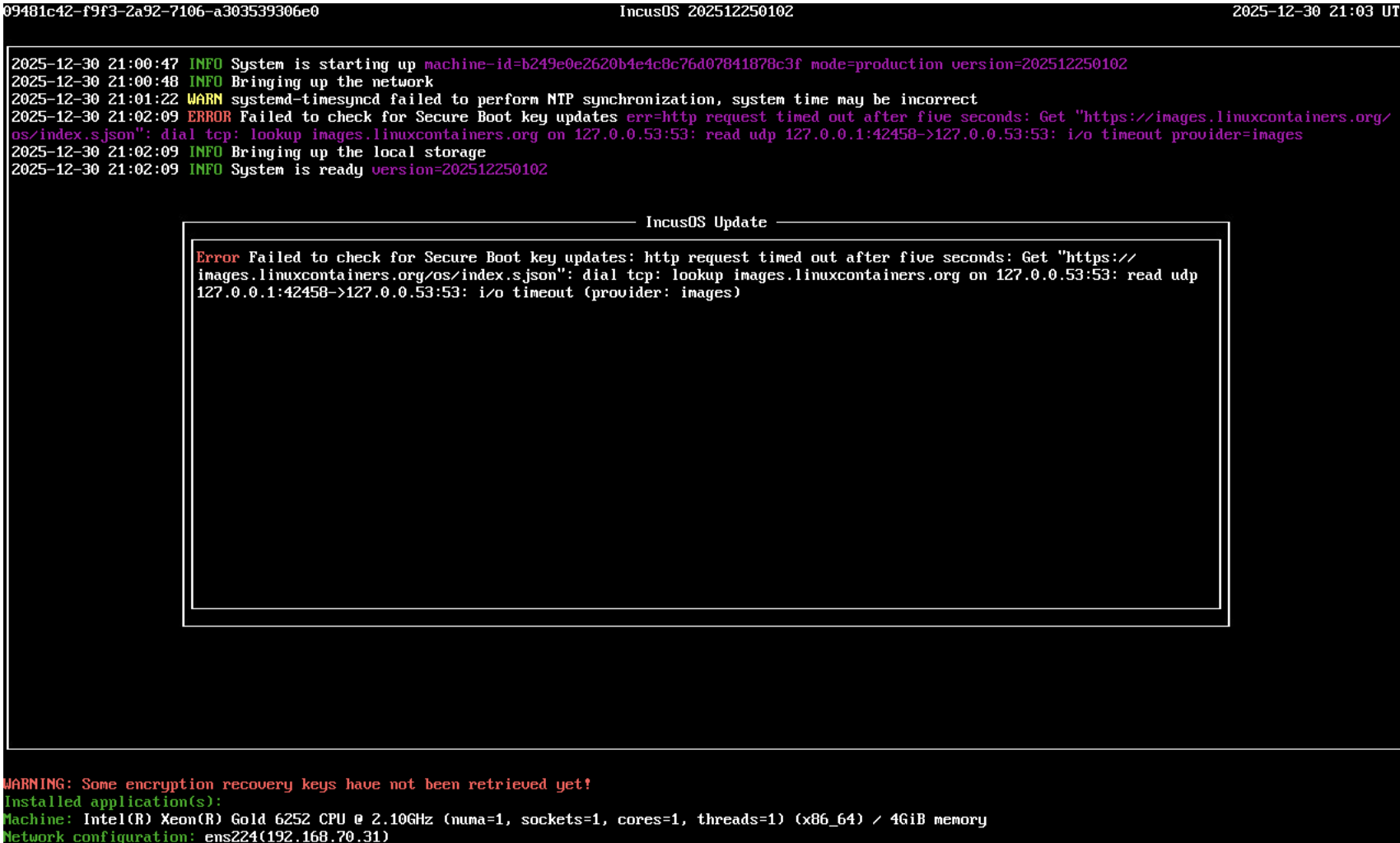
Progress using your network seed! It is now showing an IP address on the interface, but it is not responding to connection attempts and shows that it “failed to check for secure boot key…”
I have verified the gateway IP and the DNS server are correct (they match the configuration on another linux server). I am also remote today. The logs aren’t showing traffic via VPN, so I may have to just try when I am in the office tomorrow.
The error would be consistent with failing to reach the DNS server. It may be worth trying to ping the IncusOS box from another VM on that network just to make sure that basic connectivity is good now.