$ incus network create k8s-net --type=bridge ipv4.address=10.0.0.1/24 ipv4.nat=true
Network k8s-net created

$ incus launch images:debian/trixie debian-1 --network k8s-net --vm
Launching debian-1

$ incus launch images:debian/trixie debian-2 --network k8s-net --vm
Launching debian-2

$ incus list
+----------+---------+---------------------+--------------------------------------------------+-----------------+-----------+----------+
|   NAME   |  STATE  |        IPV4         |                       IPV6                       |      TYPE       | SNAPSHOTS | LOCATION |
+----------+---------+---------------------+--------------------------------------------------+-----------------+-----------+----------+
| debian-1 | RUNNING | 10.0.0.222 (enp5s0) | fd42:80b7:b44d:a74f:1266:6aff:fec2:f95b (enp5s0) | VIRTUAL-MACHINE | 0         | Debian   |
+----------+---------+---------------------+--------------------------------------------------+-----------------+-----------+----------+
| debian-2 | RUNNING | 10.0.0.19 (enp5s0)  | fd42:80b7:b44d:a74f:1266:6aff:fe32:84ff (enp5s0) | VIRTUAL-MACHINE | 0         | Debian   |
+----------+---------+---------------------+--------------------------------------------------+-----------------+-----------+----------+

$ incus exec debian-2 -- bash
root@debian-2:~# ping 10.0.0.222
PING 10.0.0.222 (10.0.0.222) 56(84) bytes of data.
Welcome!
Let’s have a look. It works for me, which means that either I did something slightly differently, or there is some other aspect that we forgot to compare properly.
$ incus version
Client version: 6.14
Server version: 6.14
$ incus network create incusbr9 --type=bridge ipv4.address=10.20.30.1/24 ipv4.nat=true
Network incusbr9 created
$ incus launch --vm images:debian/trixie/cloud debian1 --network incusbr9
Launching debian1
$ incus launch --vm images:debian/trixie/cloud debian2 --network incusbr9
Launching debian2
$ incus list --columns=ns4 debian
+---------+---------+-----------------------+
|  NAME   |  STATE  |         IPV4          |
+---------+---------+-----------------------+
| debian1 | RUNNING | 10.20.30.201 (enp5s0) |
+---------+---------+-----------------------+
| debian2 | RUNNING | 10.20.30.104 (enp5s0) |
+---------+---------+-----------------------+
$ incus exec debian1 -- su -l debian
debian@debian1:~$ ping -c 3 debian2.incus
PING debian2.incus (fd42:f558:3ab1:89ef:1266:6aff:fee5:cfe3) 56 data bytes
64 bytes from debian2.incus (fd42:f558:3ab1:89ef:1266:6aff:fee5:cfe3): icmp_seq=1 ttl=64 time=0.236 ms
64 bytes from debian2.incus (fd42:f558:3ab1:89ef:1266:6aff:fee5:cfe3): icmp_seq=2 ttl=64 time=0.262 ms
64 bytes from debian2.incus (fd42:f558:3ab1:89ef:1266:6aff:fee5:cfe3): icmp_seq=3 ttl=64 time=0.197 ms

--- debian2.incus ping statistics ---
3 packets transmitted, 3 received, 0% packet loss, time 2055ms
rtt min/avg/max/mdev = 0.197/0.231/0.262/0.026 ms
$ ping -c 3 10.20.30.104
PING 10.20.30.104 (10.20.30.104) 56(84) bytes of data.
64 bytes from 10.20.30.104: icmp_seq=1 ttl=64 time=0.308 ms
64 bytes from 10.20.30.104: icmp_seq=2 ttl=64 time=0.230 ms
64 bytes from 10.20.30.104: icmp_seq=3 ttl=64 time=0.236 ms

--- 10.20.30.104 ping statistics ---
3 packets transmitted, 3 received, 0% packet loss, time 2029ms
rtt min/avg/max/mdev = 0.230/0.258/0.308/0.035 ms
debian@debian1:~$
Having said that, it is likely that there is some issue with a firewall on the host. I do not know whether what you experience is the direct outcome of some firewall. Have a look at How to configure your firewall - Incus documentation
@simos Thanks for your reply.
-
I install incus in the Debian Windows WSL. what system do you use?
-
I don’t install
uwforfirewalld, why matters firewall? -
Can you
apt updatetoo? -
Can you
ping google.comtoo? -
What differences for
images:debian/trixie/cloudvsimages:debian/trixie/default? -
How to check firewall rules that managed Incus bridges add ?
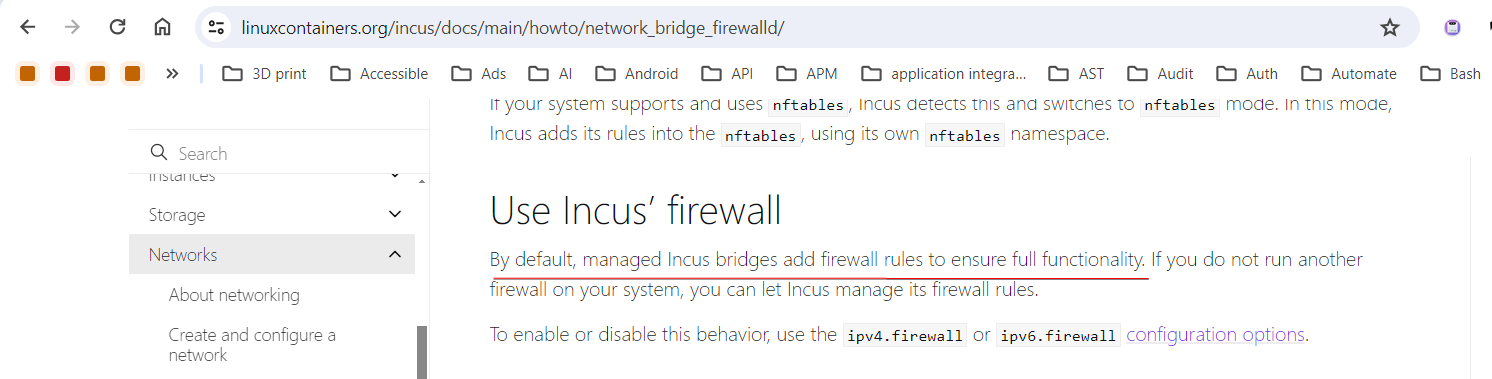
- My host runs a Linux distribution (Ubuntu). WSL is a special case and likely requires extra care.
- A firewall that normally protects other network interfaces, may block access to the managed (by Incus) network interface. It’s a common occurence but likely does not apply here.
- I can run
apt update. - And
pingto external websites. - The
/cloudthat is appended, adds some extra configuration that is not relevant here. It’s a matter of habit from my side. The extra configuration iscloud-initsupport, which means that you have the ability (if you want to) to provide extra configuration in the form ofcloud-initcommands so that when the instance boots up, it will automatically get configured with those commands. By doing so, you can have a somewhat custom instance without having to recompile anything beforehand. Also, the instance will get a non-root account so that you can get a shell as a non-root user. The Ubuntu images get aubuntunon-root account,debianfor Debian instances,alpinefor Alpine instances, etc. - I think this is the issue here. Incus, that runs on the host (WSL), has to add special Linux firewall rules just to make sure that the managed Incus network bridge is able to provide network connectivity to the instances. Being WSL, something did not work here, hence the lack of network connectivity.
I do not know what’s the state of support for Incus VMs in WSL.
- Do you use WSL or WSL-2? They are quite different, the latter is a Linux VM running in Hyper-V in Windows, and in there you are running Incus.
- There’s this issue Running Incus VM's on WSL-2 · microsoft/WSL · Discussion #11167 · GitHub which I do not know if it has been resolved. By running
incuscommands on the VM instances I believe it’s resolved for the Debian WSL-2 Linux kernel. - Use
sudo iptables -Lorsudo nft list rulesetto list those firewall rules that have been added by Incus so that the managed (by Incus) bridge is able to provide network connectivity to the instances.
- I use the lateset WSL-2, Can you use WSL-2 to setup my case?
- Can I not use incus network create to create network and then incus assign ip to vm, instead of I use others ways to assign ip to my incus vm?
I will try to give it a go in the following days. If someone else already has WSL2 and can test, please do so.
There are several options for networking in Incus. The default networking is to use a managed (by Incus) bridge. This is created either while running incus admin init, or when you run incus network create. That’s one choice the covers the most common case.
However, there are several other options where your instance can get an IP address from the LAN and that IP address is accessible directly from other systems on the LAN. You can achieve this with either bridged networking, macvlan, ipvlan, routed. Finally, there’s an option where you can assign a physical network interface to the Incus instance.
I am not much familiar with WLS2, I’ld need to give it a try to have a proper opinion.
So I setup WSL2 in Windows 11 and installed Incus 6.0.x (from the universe repository on Ubuntu 24.04.2). It worked as expected. I was able to create an Alpine instance and it had access to the Internet.
In your case, if you keep the defaults (WSL2 with Ubuntu, then default configuration with incus admin update), does that work for you?
You mention a network with name k8s-net which alludes to doing stuff with Kubernetes. Can you perform a clean setup, like use WSL2 to setup a new environment and then make sure the defaults work?
@simos Thanks for your reply, You are my friend!
Can you try to install WSL2’s debian and the official docker packages and then setup incus network? Is its network still work? can ping? can apt update?
This is my ip a:
$ ip a
1: lo: <LOOPBACK,UP,LOWER_UP> mtu 65536 qdisc noqueue state UNKNOWN group default qlen 1000
    link/loopback 00:00:00:00:00:00 brd 00:00:00:00:00:00
    inet 127.0.0.1/8 scope host lo
       valid_lft forever preferred_lft forever
    inet 10.255.255.254/32 brd 10.255.255.254 scope global lo
       valid_lft forever preferred_lft forever
    inet6 ::1/128 scope host proto kernel_lo
       valid_lft forever preferred_lft forever
2: eth0: <BROADCAST,MULTICAST,UP,LOWER_UP> mtu 1500 qdisc mq state UP group default qlen 1000
    link/ether 00:15:5d:13:8f:b6 brd ff:ff:ff:ff:ff:ff
    altname enx00155d138fb6
    inet 172.29.43.111/20 brd 172.29.47.255 scope global eth0
       valid_lft forever preferred_lft forever
    inet6 fe80::215:5dff:fe13:8fb6/64 scope link proto kernel_ll
       valid_lft forever preferred_lft forever
3: br-44b3f3a380fb: <NO-CARRIER,BROADCAST,MULTICAST,UP> mtu 1500 qdisc noqueue state DOWN group default
    link/ether d6:df:a4:2a:96:fa brd ff:ff:ff:ff:ff:ff
    inet 172.18.0.1/16 brd 172.18.255.255 scope global br-44b3f3a380fb
       valid_lft forever preferred_lft forever
4: docker0: <NO-CARRIER,BROADCAST,MULTICAST,UP> mtu 1500 qdisc noqueue state DOWN group default
    link/ether 9e:8c:b2:c3:b2:fd brd ff:ff:ff:ff:ff:ff
    inet 172.17.0.1/16 brd 172.17.255.255 scope global docker0
       valid_lft forever preferred_lft forever
5: k8s-net: <BROADCAST,MULTICAST,UP,LOWER_UP> mtu 1500 qdisc noqueue state UP group default qlen 1000
    link/ether 10:66:6a:96:d0:f2 brd ff:ff:ff:ff:ff:ff
    inet 10.0.0.1/24 scope global k8s-net
       valid_lft forever preferred_lft forever
    inet6 fd42:80b7:b44d:a74f::1/64 scope global
       valid_lft forever preferred_lft forever
    inet6 fe80::1266:6aff:fe96:d0f2/64 scope link proto kernel_ll
       valid_lft forever preferred_lft forever
6: tap5aa44a49: <BROADCAST,MULTICAST,UP,LOWER_UP> mtu 1500 qdisc mq master k8s-net state UP group default qlen 1000
    link/ether 46:af:fe:9e:27:8b brd ff:ff:ff:ff:ff:ff
7: tapbfa0277d: <BROADCAST,MULTICAST,UP,LOWER_UP> mtu 1500 qdisc mq master k8s-net state UP group default qlen 1000
    link/ether 0a:6a:b8:e1:db:43 brd ff:ff:ff:ff:ff:ff
9: veth29535fe9@if8: <BROADCAST,MULTICAST,UP,LOWER_UP> mtu 1500 qdisc noqueue master k8s-net state UP group default qlen 1000
    link/ether 52:48:16:db:1f:71 brd ff:ff:ff:ff:ff:ff link-netnsid 0
- How is eth0 created in the WSL2?
- why
172.29.43.111/20’s broadcast address is172.29.47.255, not172.29.43.255? - eth0 do not use bridge mode?
- why gateway is
172.29.32.1? why not172.29.49.1?
give me your ip a, please.
@simos @stgraber I have open pull request, please review.